How to Free Up Storage on Your Phone Without Losing a Single Photo
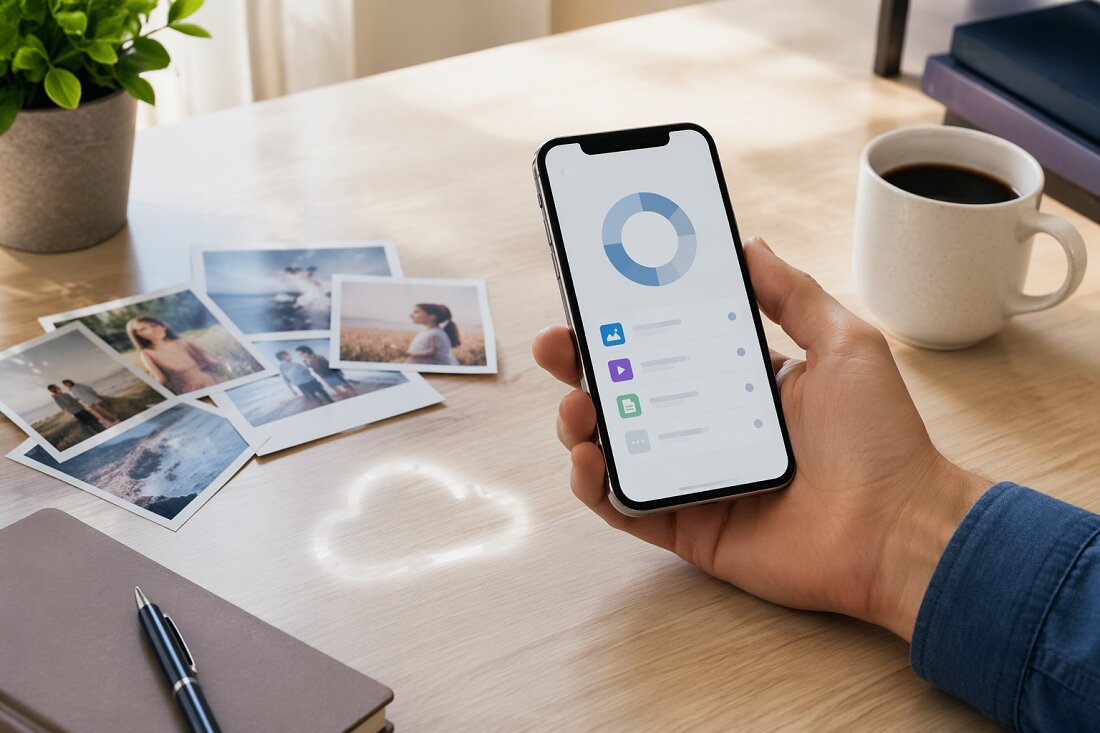
You’re low on storage, but you don’t want to lose a single photo, and you don’t have to. With the right steps, you can clear space safely by checking what’s actually filling your phone, backing up correctly, and removing only what you don’t truly need on the device. The key is knowing which switches to flip—and which ones you should never touch if you care about your photos…
Check What’s Using Storage (Without Touching Photos)
Before removing any photos, first identify what's actually using your phone’s storage.
On Android, open Settings → Storage (or Settings → Battery and device care → Storage/Manage storage on Samsung devices). You'll see categories such as System, Apps, Photos/Media, Other.
Use View/Manage storage (or similar options, depending on your device) to see which apps consume the most space and compare how much is used by app data versus cache.
Cached data is usually safe to clear, while app data may include important files and settings.
On iPhone, go to Settings → General → iPhone Storage. Review the system Recommendations, such as Review Large Attachments, which can help you find large files in Messages and other apps.
Tap an app to see options like Delete App, Offload App, or Clear Downloaded Data (where available).
The Last Used information can help you identify apps you rarely open but that still occupy significant storage.
Back Up Photos and Videos to the Cloud First
Before removing any photos or videos from your phone, ensure they're fully backed up to a cloud service. Deleting files before confirming a successful backup can result in permanent data loss, so following a clear photo backup step by step process helps avoid mistakes.
On iPhone, go to Settings → [your Apple ID] → iCloud → Photos and enable Optimize iPhone Storage. This setting stores smaller, device-optimized versions on your phone while keeping the full-resolution originals in iCloud. Verify that iCloud Photos is turned on and that recent items have finished uploading before deleting anything.
On Android, open Google Photos, sign in if necessary, and turn on backup. Then use the Free up space option, which removes local copies of items that have already been safely backed up. Confirm that photos and videos show a “Backed up” or similar sync-complete status before deleting local files.
Free Up iPhone Storage Without Deleting Photos
On an iPhone, you can free up storage while keeping your photos.
Open Settings → General → iPhone Storage and review Apple’s Recommendations, such as Review Large Attachments, to remove large files (for example, from Messages or Mail) that you no longer need.
In Settings → Photos, enable iCloud Photos and select Optimize iPhone Storage. This keeps smaller versions of photos on the device while storing full‑resolution originals in iCloud, which can reduce local storage use.
After confirming that your photos are safely backed up to iCloud or another service, use the Photos section in iPhone Storage to remove only already‑synced originals. This deletes local copies while preserving the versions stored in the cloud.
For Messages, go to Settings → General → iPhone Storage → Messages and remove attachments by category (such as photos, videos, or other large files) to clear space without deleting entire conversations.
Finally, review each app’s entry in iPhone Storage. Many apps store offline videos, downloads, or cached data that can be removed from within the app or by using the Offload App or Delete App options, depending on what you no longer need.
Free Up Android Storage Without Deleting Photos
Android phones can run low on storage quickly, but you can free up space without permanently deleting photos from your device.
Start by checking what's using the most storage: go to Settings → Storage (or Battery and device care → Storage/Manage storage). Review the main categories, such as apps, photos, videos, and downloads, to identify large items.
Before removing any photos from local storage, back them up. If you use Google Photos, open the app and turn on backup and sync for your account. After the backup completes, use Google Photos → Free up space.
This tool removes local copies of photos and videos that are already backed up, while keeping them accessible via the Google Photos app or web interface.
You can then clear application caches, which often reclaim a noticeable amount of space without affecting your personal data. Go to Settings → Apps → select an app → Storage → Clear cache.
Prioritize apps that handle a lot of media or web content (such as social media and browsers).
Next, remove offline and downloaded media. In apps like YouTube, music streaming services, and podcast players, delete downloaded videos, songs, and episodes you no longer need.
Finally, check your file manager (My Files or Files by Google) and review the Downloads folder and messaging media folders. Deleting large or duplicate files from these locations can free additional space while preserving your backed-up photos.
Delete Unused Apps Without Losing Important Data
After freeing space by managing photos and media, the next step is to review apps that use significant storage.
Go to Settings → Apps (or Apps & notifications), select apps you rarely use, and choose Uninstall.
This removes the app along with its local data and cache, but it doesn't delete photos stored in the Photos or Gallery app.
For large media or social apps (for example, TikTok or Instagram), confirm that any photos and videos you want to keep are already saved or backed up (such as to iCloud Photos or Google Photos) before uninstalling.
On iPhone, you can use Settings → General → iPhone Storage → Offload App to free up the app’s storage while retaining its documents and data.
After making changes, review Settings → Storage (or iPhone Storage) to confirm that your important photo and video storage hasn't been affected.
Clear App Cache and Junk Files Safely
While photos and videos usually occupy the most storage, cached data and other temporary app files can also accumulate over time.
To review and clear some of this space, open Settings → Storage (or Device care on Samsung devices) and look for an option such as Free up space or Storage management.
Then select Cached data.
This process doesn't delete your photos or remove your accounts.
For app-specific cache, go to Settings → Apps → [app name] → Storage → Clear cache.
This removes temporary files for that app.
Avoid using Clear data unless you intend to reset the app, as it can remove local settings, downloaded content, and may sign you out.
On Android devices that include it, you can also use Files by Google: open the app, go to Clean, choose Junk files, and then select Clear to remove temporary and residual files.
In the Chrome browser, use Settings → Privacy and security → Clear browsing data, and select only Cached images and files if you want to free space without removing browsing history or saved passwords.
Restarting your phone can resolve minor performance issues, but it doesn't usually free significant storage space.
Deleting cache and junk files directly is more effective for recovering storage.
Optimize Photo Settings to Save Phone Storage
Instead of deleting photos to free space, you can adjust a few settings so your phone stores images more efficiently.
On iPhone, go to Settings → Photos and turn on Optimize iPhone Storage. Full‑resolution images are stored in iCloud, and smaller versions remain on your device.
Full‑resolution files are downloaded again when you open or edit a photo, as long as you have an internet connection and available iCloud storage.
On Android, open Google Photos, enable Backup & sync, and then use Free up space. This removes local copies of photos and videos that are already safely backed up to your Google account, reducing the risk of losing unbacked‑up files.
In messaging apps (such as WhatsApp, Telegram, or Messages), turn off automatic media downloads so that received photos and videos aren't saved to your device by default. This reduces storage use from large group chats or frequent media sharing.
Finally, review your phone’s Storage or Device care screen and check the Photos & videos section. Before deleting any files, confirm that important photos and videos are backed up to a cloud service or another device to avoid data loss.
Clean Up Downloads and Offline Files
Start by removing unnecessary downloads and offline files, as these can use significant storage space over time. Open your phone’s Downloads folder
- Android: My Files → Downloads
- iPhone: Files → Downloads or Settings → On My iPhone → Downloads
Delete files you no longer need, such as old documents, installers, or media files.
Then review offline content stored within apps. Many podcast, music, and video apps save episodes or videos for offline use. Open each app’s Downloads or Offline section and remove items you have already watched, listened to, or no longer plan to use.
On Android, you can also use Files by Google to clear temporary data: open Files by Google → Clean → Junk files → Clear. In addition, you can reduce cached web data in Chrome by going to History → Clear browsing data and selecting cached images and files.
Focus on removing temporary and cached items rather than personal photos or important documents.
Keep Message Photos From Filling Your Storage
Message photos can occupy a significant amount of storage over time, so it's useful to adjust how your messaging apps handle them. In each app’s settings, look for options such as “Auto-download media” or “Save to camera roll” and disable them if you prefer images to remain within the app rather than being stored in your main photo library.
On Android, you can review and remove unneeded message images using the My Files app (for example, under Downloads or individual app-specific media folders). Deleting only unnecessary files helps free space while preserving images you still need.
On iPhone, go to Settings → General → iPhone Storage → Messages to review attachments by category (such as photos, videos, or large files) and delete them directly from there without affecting items stored in the Photos app.
Where supported, features like “view once” media or limited-retention settings (such as auto-deleting older media after a set period) can further limit long-term storage use. Periodically reviewing and clearing large message attachments can help maintain available storage.
Create a Simple Ongoing Phone Storage Routine
Once you’ve stopped message photos from accumulating automatically, you can keep storage under control by adding a brief, recurring checkup. Every 2–4 weeks, open Settings → Storage (on Android: Settings → Battery and device care/Device care → Storage) and review the top 1–3 apps or categories using the most space.
Start with changes that don't risk data loss. Clear app cache and temporary files (on Android: Storage → Clear cache; or use Files by Google → Clean → Junk files → Clear). Then make sure your photos are backed up, and use Google Photos → Free up space or iCloud Photos → Optimize iPhone Storage to remove local copies that are safely stored in the cloud.
Finally, review and remove files that are often overlooked but can grow large over time: items in the Downloads folder, old message attachments, offline podcasts and playlists, offline maps, and other downloaded media you no longer need.
Conclusion
You don’t have to sacrifice a single photo to get your phone’s storage under control. When you regularly check what’s taking space, back up to the cloud, and use built‑in tools to offload local copies, you keep your memories safe and your device fast. Delete only what you don’t need—unused apps, large downloads, and old offline files—and tweak your photo and messaging settings so your phone stays organized without any stressful last‑minute cleanups.
|


 About Us Products Store Support Case Studies Community Developers Partners Legal Contact Us